If you don’t remember your Suffolk password or if it is not working, you will need to reset your password. It's also a good idea to reset your Suffolk password if you think it has been compromised.
1. Log in to the Suffolk Login Portal: Go to the College homepage at sunysuffolk.edu and click Login, or go directly to sunysuffolk.edu/login

2. Click on the Forgot Password link
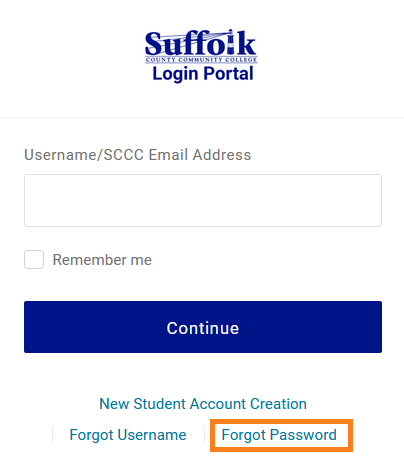
3. Enter your Suffolk username and click Continue
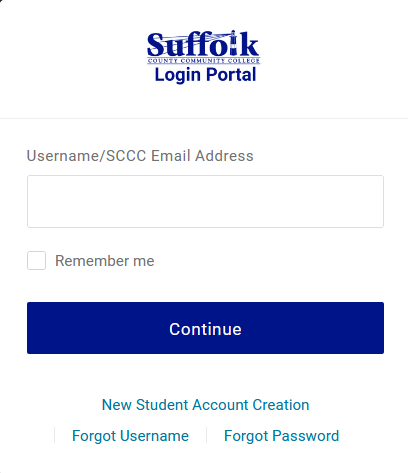
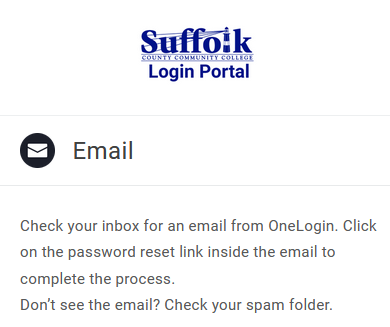
If you enter an incorrect username, an Email message "check your inbox for an email from OneLogin" comes up. Please ignore the instructions, start again, and make sure your Suffolk username is spelled correctly. If you need to get your username click on the Forgot Username link.
4. Complete the reCAPTCHA to proceed
5. Authenticate using your MFA method
6. You will be prompted to create a new password. For security reasons, it is advised that you create a unique password for your college account, preferably 12 or more characters long, and do not use it for other systems.
If your MFA is not working, contact the Suffolk Help Desk at 631-451-HELP (4357) to have your MFA reset.
Students should contact the Registrar Office to get a temporary password. Complete the Password Reset Request Form and send to your campus Registrar Office ONLY, along with a copy of your driver’s license.
Once the Registrar gives you a temp password:
1. Log in to the Suffolk Login Portal: Go to the College homepage at sunysuffolk.edu and click Login, or go directly to sunysuffolk.edu/login
2. Enter your Suffolk username and click Continue
3. Type in the temp password, exactly as provided by Registrar, and click Continue
4. You will be prompted to set up your two-factor authentication
5. Once logged in to the Suffolk Login Portal, go to your name on the top right, select Profile and change the temporary password to your own.
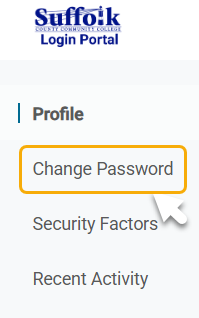
For security reasons, it is advised that you create a unique password for your college account, preferably 12 or more characters long, and do not use it for other systems.
